Rules Builder
Plan: Starter and above
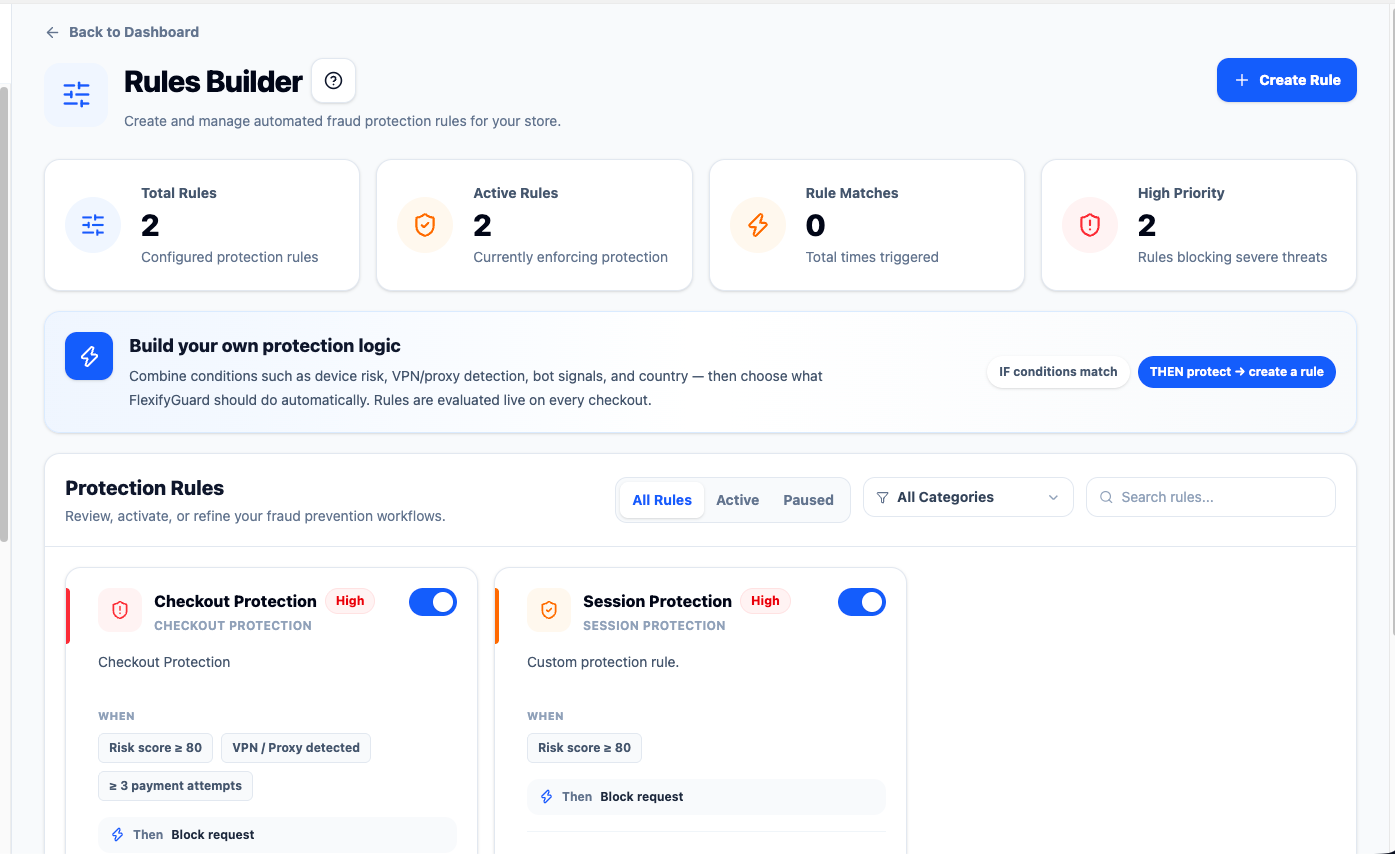 Creating a rule: conditions, action and priority
Write your own fraud logic without code. A rule is a set of conditions and one action. All conditions in a rule must match (AND). Rules are evaluated in priority order; the first match wins.
Where rules run
- On every new order, with the real order value and country. Actions are enforced on the order.
- On every checkout recorded through Shopify's checkout webhook, so rules fire on bot checkouts too.
- On checkouts recorded by the storefront script (order value is not known at that point).
Conditions
| Condition | Matches when |
|---|---|
| Datacenter, VPN or proxy IP | The IP is a hosting range, VPN or proxy |
| Bot detected | The device shows bot signals |
| New device | The device was first seen less than 24 hours ago |
| Risk score ≥ | FlexifyGuard's score is at or above the value |
| Order value ≥ $ | The order total is at or above the value (orders and webhook checkouts) |
| Checkout attempts from same IP (30 min) ≥ | Velocity from that IP |
| Country in list | Shipping (or billing, or IP) country is in your comma-separated list, e.g. NG,RU,ID |
Actions
| Action | On an order | On a checkout |
|---|---|---|
| Cancel order | Cancelled in Shopify | Marked High Risk |
| Hold for review | Sent to review | Marked Flagged |
| Send alert only | Alert raised; scoring unchanged | Alert raised |
| Allow and monitor | Approved (unless a blocklist matches — blocklists always win) | Allowed |
Every rule match raises an alert and increments the rule's hit count.
Tips
- Start with Hold for review, watch what a rule catches for a week, then promote it to Cancel order if it is accurate.
- Country rules are blunt. A "Cancel" rule on a whole country cancels legitimate customers there too.
- Test with a rule like Order value ≥ $1 → Hold for review, place a test order, confirm the order is on hold, then delete the rule.
Step by step: your first rule
Start with a rule that holds rather than cancels, so you can see what it catches before trusting it.
- Open Rules Builder and click Create Rule.
- Name it, e.g. High-value orders from new devices.
- Add conditions (every condition must match):
- Order value ≥
250 - New device
- Order value ≥
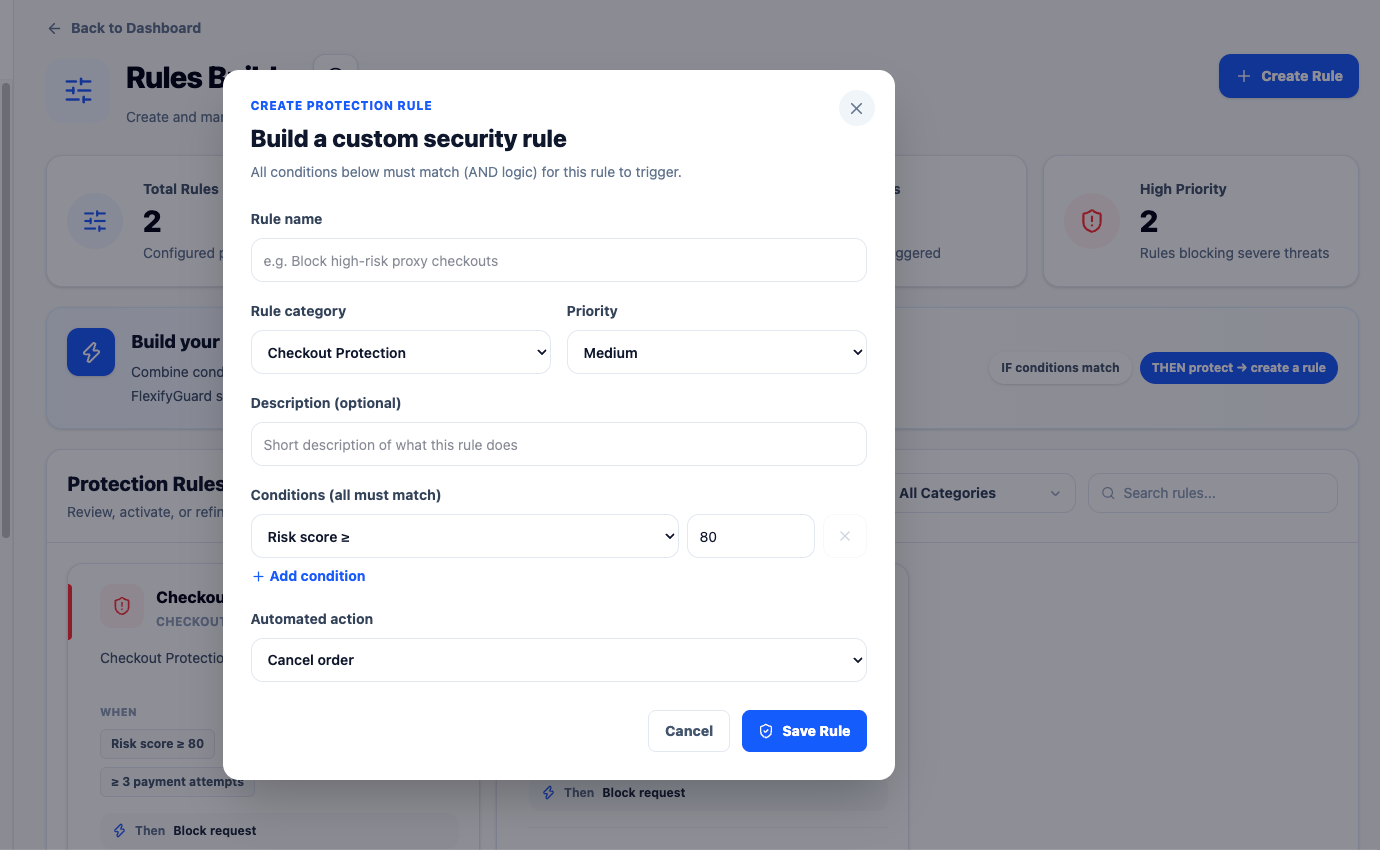 The rule form: name, category, priority and conditions
- Set the action to Hold for review and save.
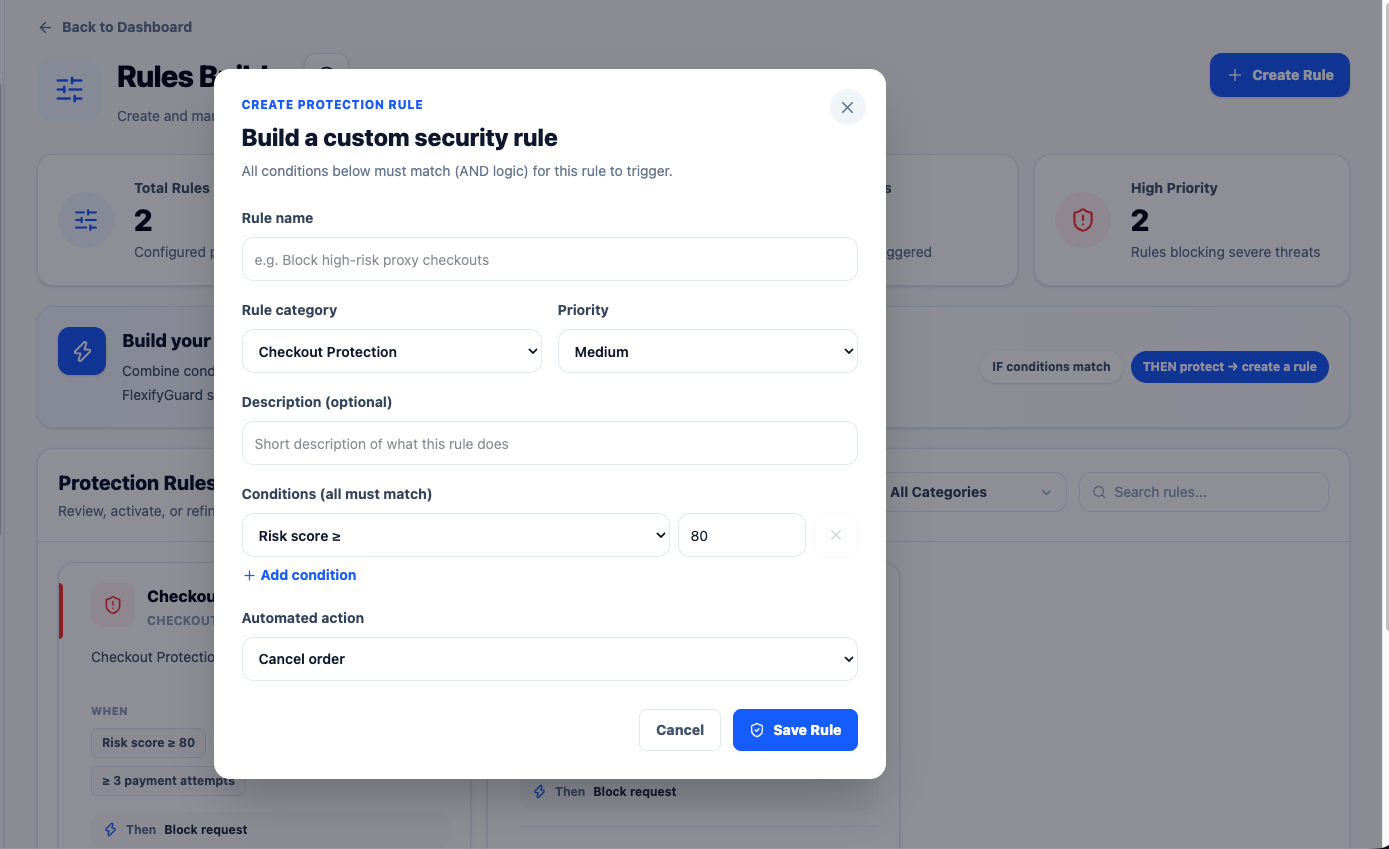 The Automated action field; choose Hold for review to start
- Test it: temporarily add Order value ≥ 1 → Hold for review, place a test order on your store, and confirm it appears in Orders Risk Review as on hold. Delete the test rule afterwards.
- After a week, open the rule and look at its hit count. If every hit was genuinely risky, change the action to Cancel order.