Getting started
Install
- Open the FlexifyGuard listing on the Shopify App Store and click Install.
- Shopify shows the permissions the app needs (below). Approve them.
- FlexifyGuard opens inside your Shopify admin on the Dashboard.
Installation is handled by Shopify. On first open, FlexifyGuard registers the webhooks it needs and adds its storefront script. Nothing else is required.
Permissions FlexifyGuard asks for
| Permission | Why |
|---|---|
| Read and edit orders | Score orders, hold fulfilment, cancel fraudulent orders, submit risk assessments |
| Read and edit customers | Match orders against your customer blacklist and allowlist |
| Read and edit products | Product Abuse Detection scans and, if you choose, archives listings |
| Merchant-managed fulfilment orders | Place and release fulfilment holds on risky orders |
| Online Store script tags | Add the storefront script that records visitors and checkouts |
FlexifyGuard never sees card numbers, and Shopify never sends them to apps.
What happens after install
- Immediately: every new order is scored. New checkouts are recorded.
- Within minutes: the storefront script starts recording visitors and devices (subject to cookie consent — see Storefront script).
- You are on the Free plan. Free includes the Dashboard, Orders Risk Review (view only), Checkout Attempts (view only) and basic alerts. See Plans and billing.
The three unlocked pages on Free
- Dashboard — overview of blocked attempts, suspicious orders, chargeback risk and security score.
- Orders Risk Review — every scored order with its risk level and signals. Actions require Starter or above.
- Checkout Attempts — every checkout recorded, with its score. Actions require Starter or above.
Everything else shows an Upgrade required screen until you move to a paid plan.
Step by step: your first 10 minutes
- Install from the App Store listing and approve the permissions.
- Open the Dashboard. It is empty until orders and visitors arrive; that is normal.
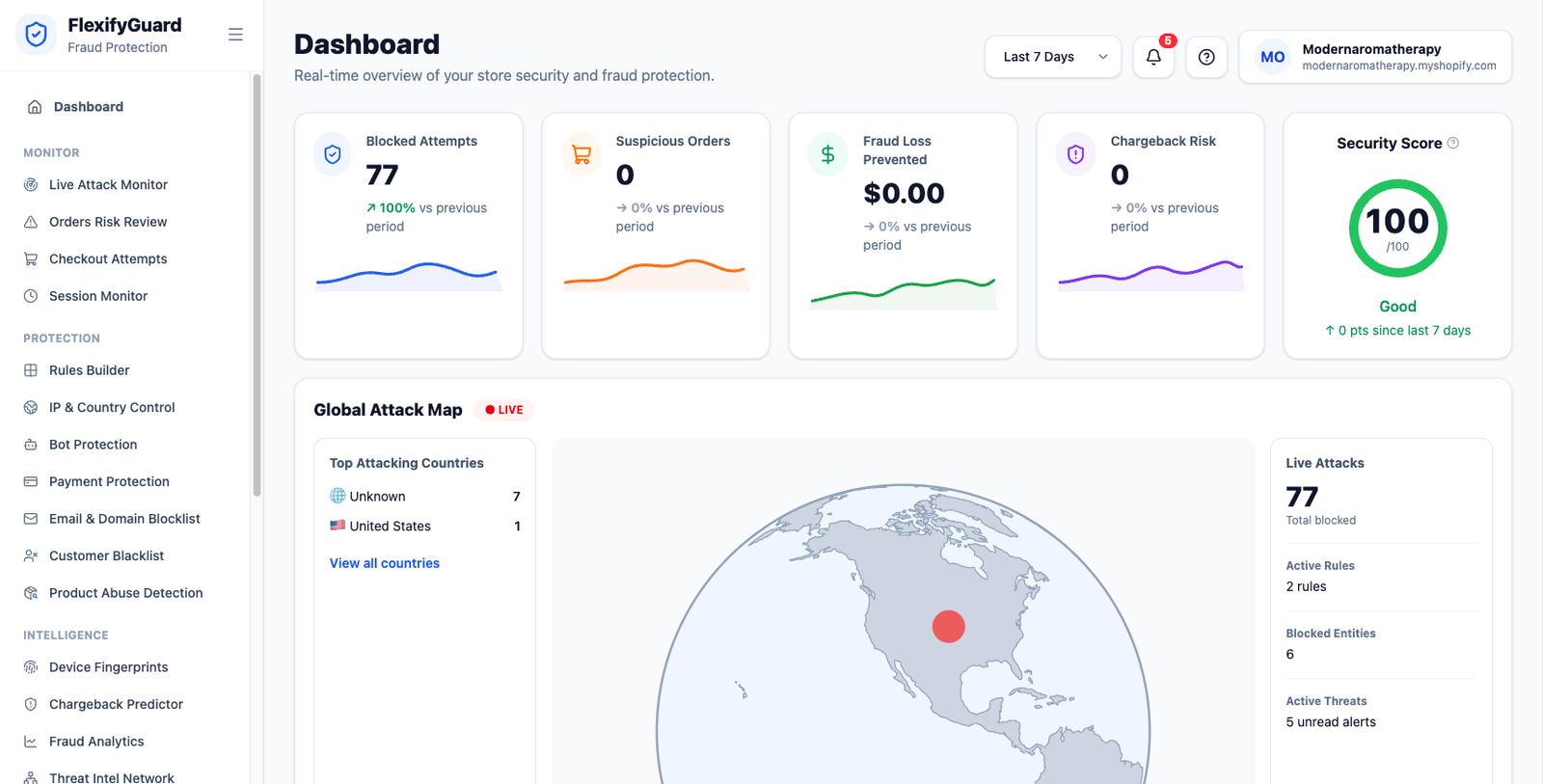 The Dashboard once orders and visitors have arrived
- Check the storefront script is running. Open your store in a new tab, then come back and open Session Monitor (Growth plan), or on Free open Checkout Attempts after clicking Checkout on your own store.
- Choose a protection preset. Go to General Settings → Fraud Protection Mode and pick Standard. Tune thresholds later in Auto Actions.
- Decide on auto-cancel. Nothing is cancelled automatically on score until you turn it on in Auto Actions. Blocklist matches are always cancelled. Leave auto-cancel off for the first week and watch what gets flagged.
- Add what you already know. A list of bad emails or an IP that keeps hitting you goes under Email & Domain Blocklist and IP & Country Control.