IP & Country Control
Plan: Starter and above
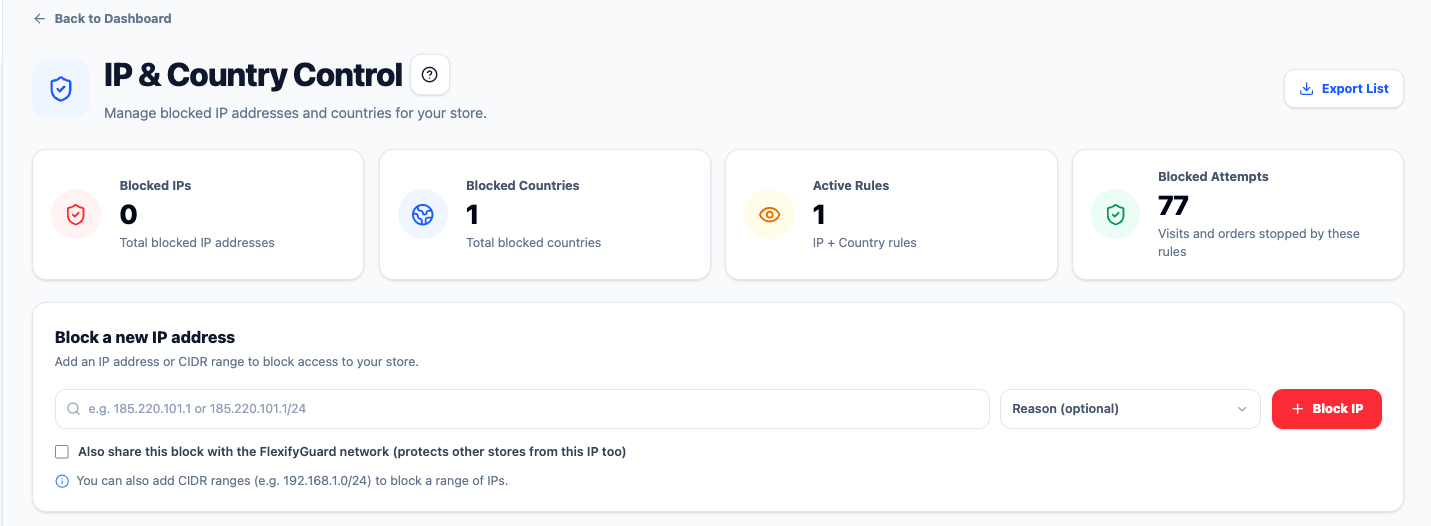 Blocking a single IP, a CIDR range and a country
Block by single IP, IP range, or country.
What a block does
A blocked IP or country is enforced in three places:
- Storefront — the visitor sees a block page instead of your store (requires the storefront script to run for that visitor).
- Checkout — any checkout from that IP or country is scored 100.
- Orders — any order from that IP, or shipping to / billing from that country, is cancelled in Shopify automatically.
The third point matters most: bots that skip your storefront still cannot complete an order.
IP ranges
Enter a range in CIDR notation, e.g. 43.128.0.0/16. The app validates the format and matches any IP inside the range. Use this for cloud-provider ranges when you are receiving scraper traffic from them.
Sharing with the Threat Intel Network
When blocking an IP you can tick Share with network. See Threat Intel Network for what that does — it does not block the IP for other stores on its own.
Cards
- Blocked IPs, Blocked Countries, Active Rules — your current entries.
- Blocked Attempts — the real number of visits and orders these entries have stopped.
Removing an entry takes effect immediately.
Step by step: blocking an IP, a range, or a country
Block a single IP
- Open IP & Country Control.
- Paste the IP (for example from a Checkout Attempt), add a reason you will recognise later, click Block.
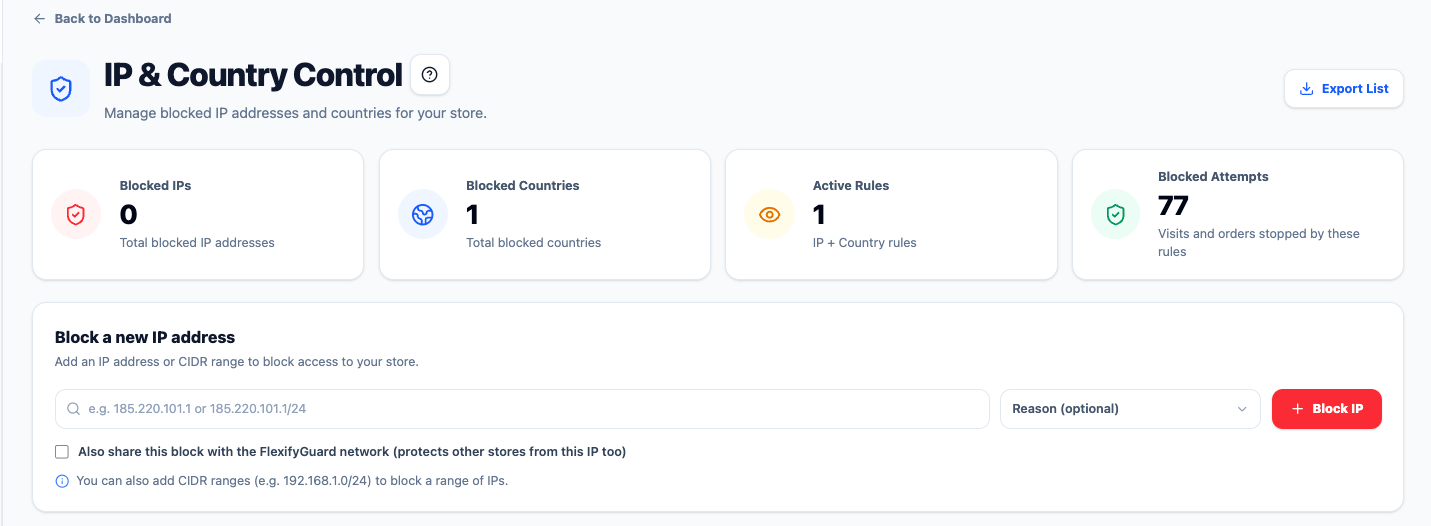 The Block a new IP address form; add a reason and click Block IP
Block a whole range (for cloud scraper traffic)
- Enter the range in CIDR form, e.g.
43.128.0.0/16. Invalid formats are rejected with a message. - Click Block. Every IP inside the range is now blocked on the storefront, at checkout, and on orders.
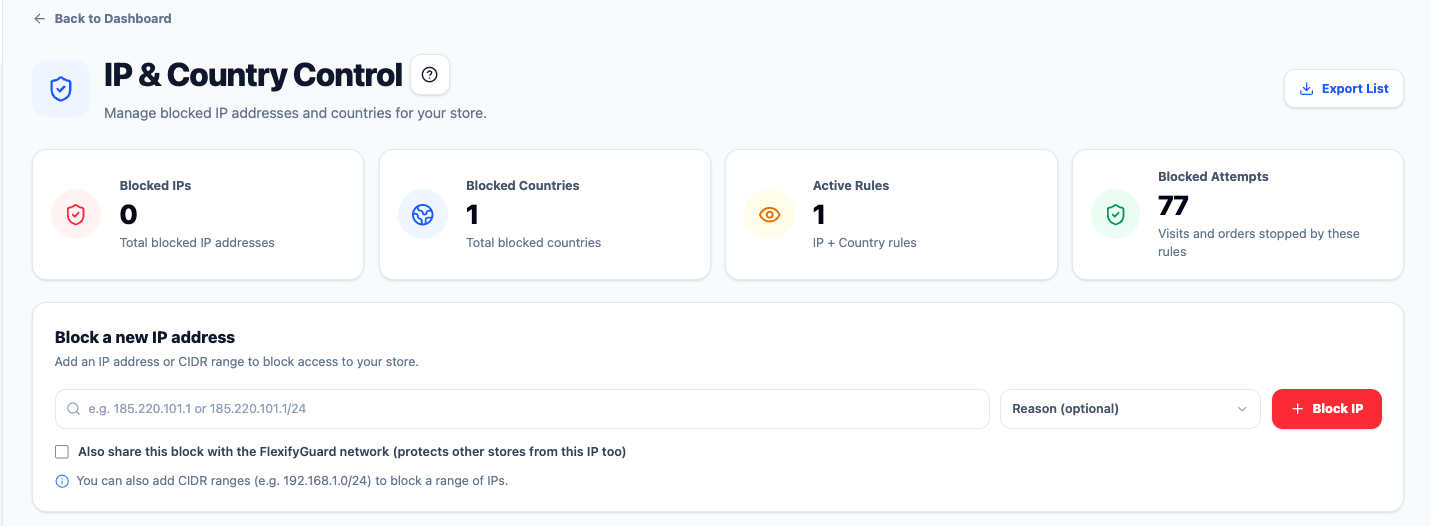 Ranges go in the same field, e.g. 43.128.0.0/16 (see the hint under the form)
Block a country
- Switch to the Countries tab, pick the country, click Block.
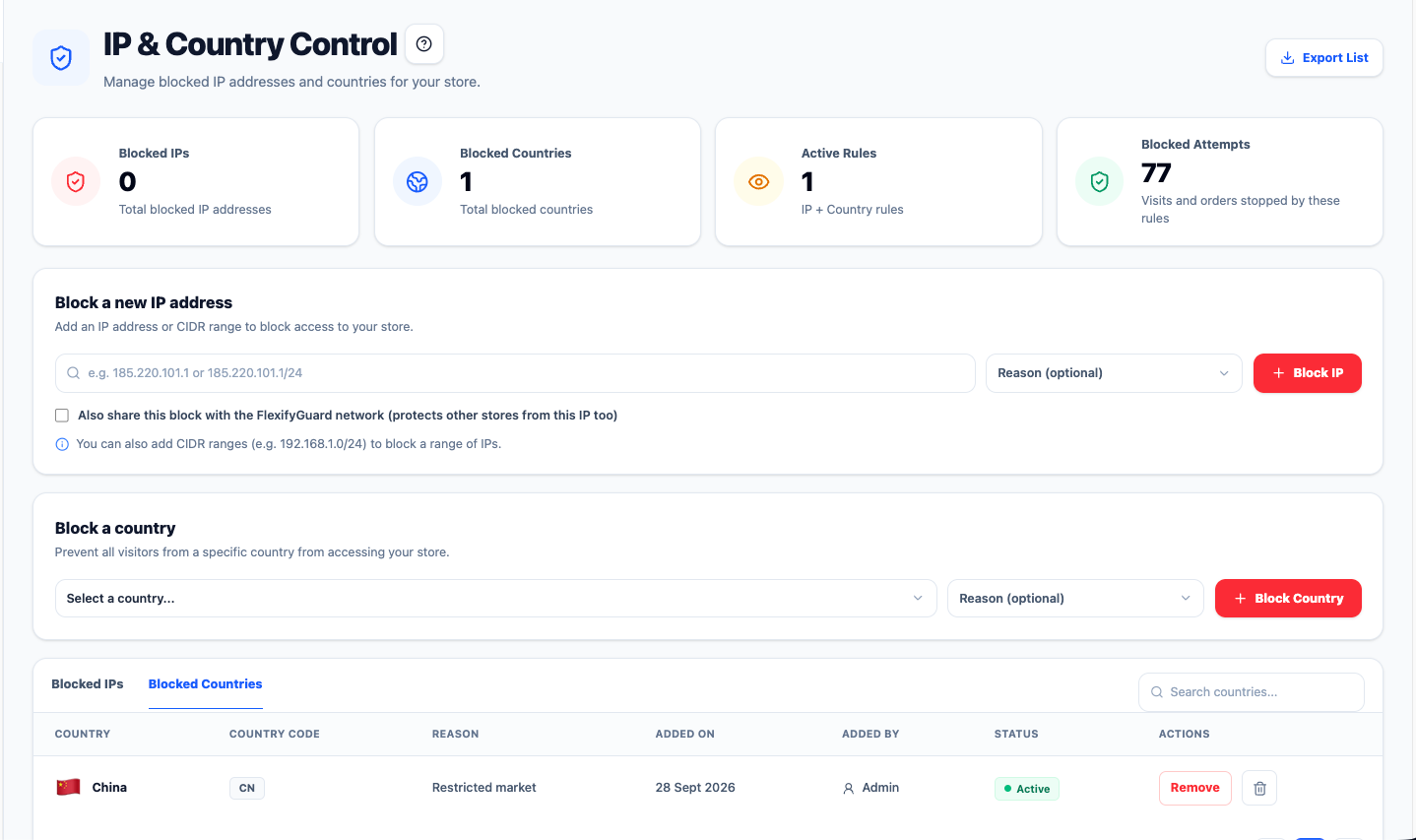 Block a country, and the Blocked Countries list
- Orders shipping to or billing from that country are cancelled automatically; visitors from it see the block page.
Undo: click the trash icon on any entry. It takes effect immediately.